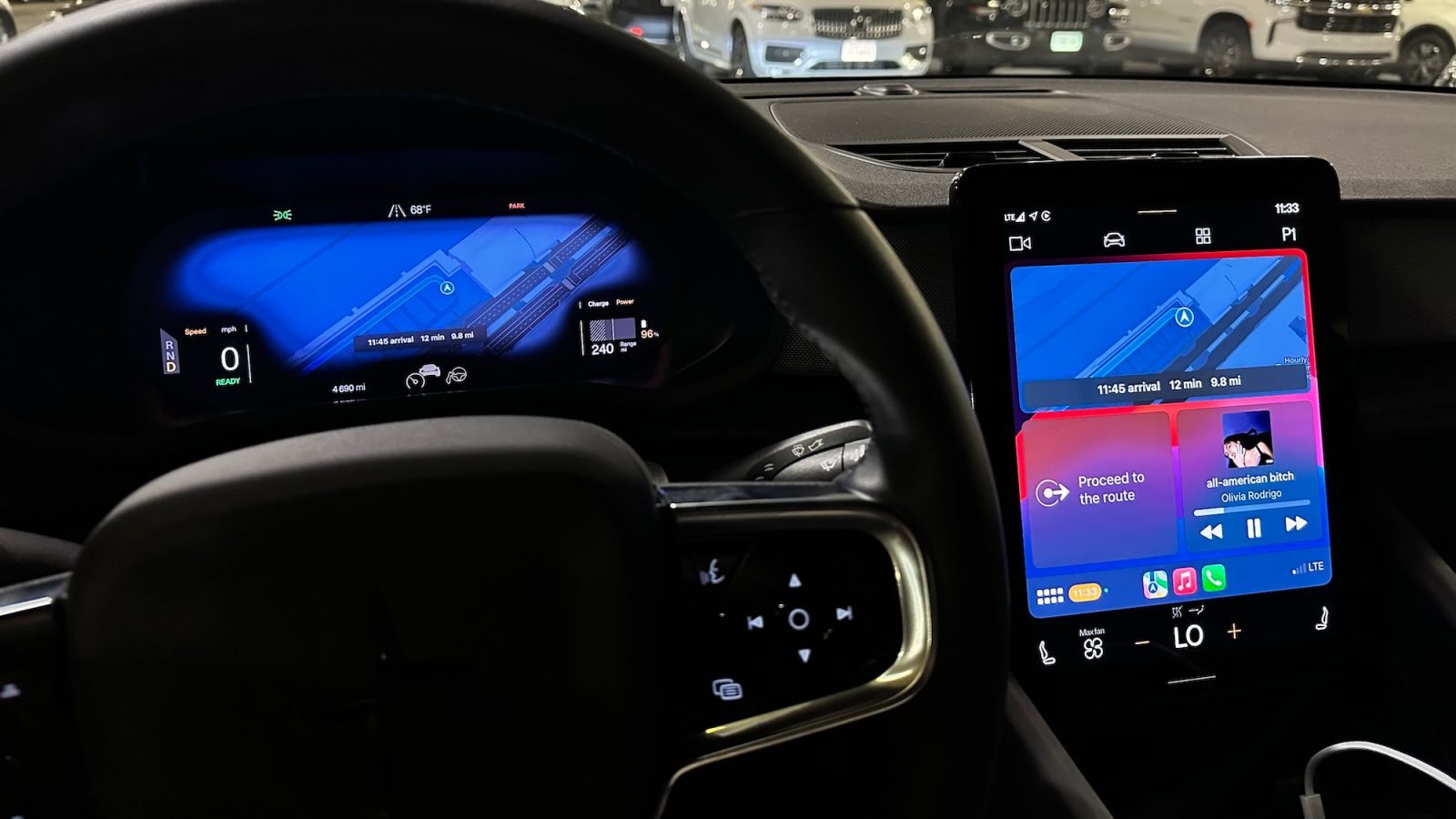
For the vast majority of people, CarPlay is a must-have. Apple’s in-car experience provides a vastly superior infotainment experience than most options from carmakers. There’s quick access to your favorite apps, integration with Siri, seamless connectivity, and more.
Here are all of my favorite tips and tricks for making sure you’re getting the most out of your CarPlay experience…
Updated April 7, 2026 with new iOS 26 features
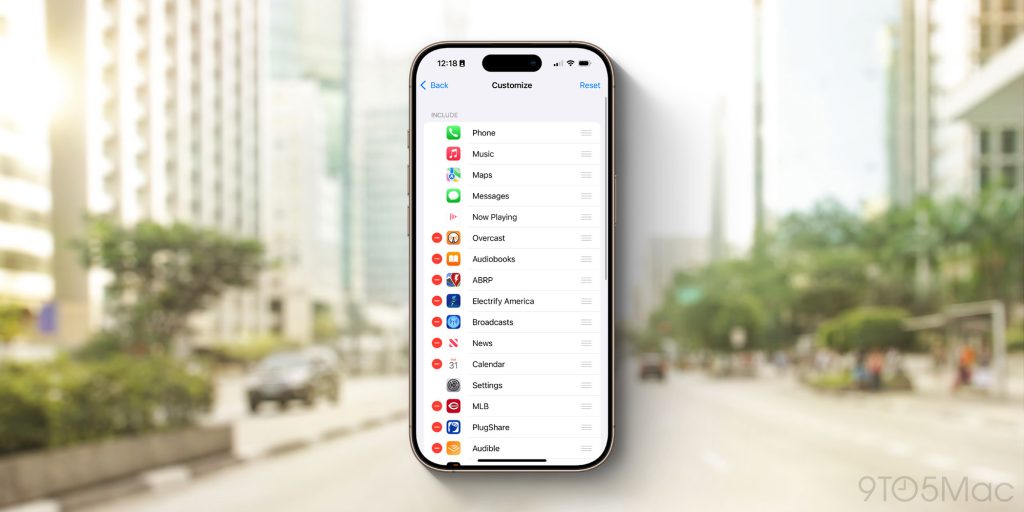
A lot of your favorite apps are probably available on CarPlay, but that doesn’t mean you want all of them on your CarPlay Home Screen. Thankfully, it’s easy to adjust those options.
Here, you’ll see a full list of all the CarPlay apps on your phone. You can simply tap on the red minus sign to hide apps from appearing on CarPlay.
You can also rearrange your CarPlay Home Screen while on this page of the Settings app. Simply drag the apps into your desired order using the three lines on the right side of the app icons.
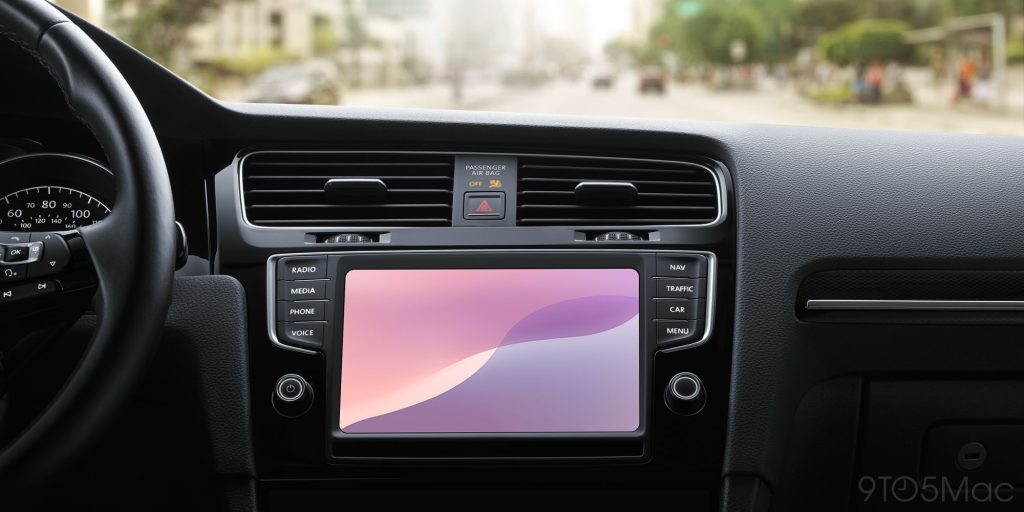
While you can’t use any photo as your CarPlay wallpaper, Apple does offer a selection of pre-installed options.
Apple adds new wallpaper options to CarPlay from time to time, but there’s still only a limited number of choices available.
CarPlay works both wired and wirelessly, depending on your car’s make and model. Wired CarPlay generally provides a faster and more reliable experience. While using wireless CarPlay, you might experience some latency when doing things like changing songs and accessing Siri.
Here’s my strategy:
Again, your mileage may vary depending on your car. There are, however, ways to bring wireless CarPlay to any car. My personal recommendation is the CarlinKit 5.0 adapter, which converts your car’s wired CarPlay implementation to a wireless experience for under $60.
CarPlay is available in light mode and dark mode interfaces. In the Settings app via CarPlay, you can choose between three options:
I use the automatic setting, which switches between light and dark modes based on time of day and other exterior lighting factors.
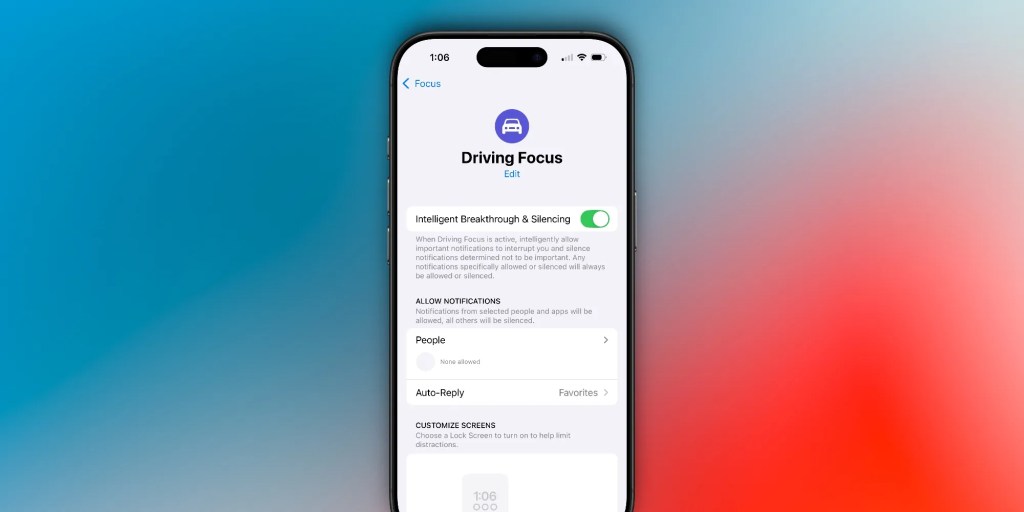
One of the most important benefits of CarPlay is that it enhances in-car safety by discouraging you from picking up your phone. First, there’s the Driving Focus mode. This blocks incoming notifications, messages, and calls so your focus remains on the road.
You can customize the Driving Focus mode via the Settings app on your iPhone. You can choose to allow notifications from specific contacts and enable an automatic reply feature that tells people who text you that you’re driving. You can also choose to enable Driving Focus when connected to CarPlay automatically.
Announce Messages is a popular iPhone feature that works with Siri to read your messages aloud. Then, you can choose to reply to that message using your voice. The feature works with Apple’s Messages app as well as third-party apps like WhatsApp.
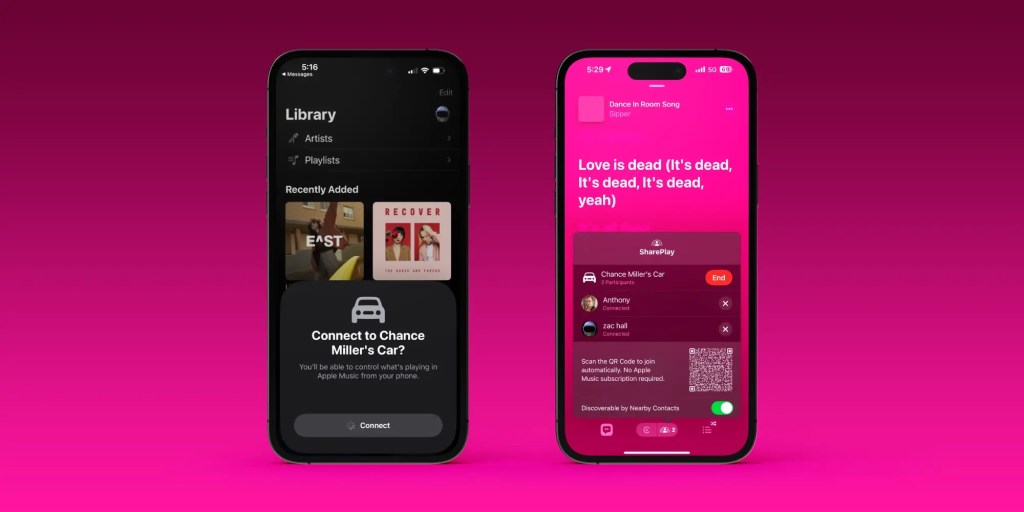
If you’re like me, you prefer to have control of the music while you’re driving. However, if want other people in your car to be able to contribute songs to the queue, CarPlay has you covered.
You’ll see a SharePlay icon in the upper-right corner on the Apple Music Now Playing screen. By tapping on this icon, you’ll be prompted to generate a QR code that others can scan. Once they scan this QR code, a pop-up will appear, informing you that someone is interested in joining your SharePlay session.
Once that person joins, the other people can contribute songs to the queue, see what’s currently playing, and rearrange the queue – even if they don’t have Apple Music.

With CarPlay in iOS 26, Apple added support for widgets for the first time. Now, you can access many of your favorite iPhone widgets right on your car’s screen.
The implementation here will vary based on the size of your car’s screen. In some cars, you can create two “stacks” of widgets, while other cars limit you to a single stack.
To manage widgets in CarPlay, follow these steps:
Here, you can add multiple widgets to your stack and re-order them. There’s also a toggle called “Smart Rotate” that will intelligently switch between the widgets in each stack, as well as a “Widget Suggestions” option.

iOS 26 also adds support for Live Activities in CarPlay. This mirrors the Live Activities that appear on your iPhone right on your CarPlay screen. Live Activities are one of my favorite iPhone features, so I’m glad they’ve made the jump to CarPlay with iOS 26.
Live Activities are enabled by default in CarPlay, but you can turn them off by going to the Settings app on your CarPlay screen.

iOS 26 revamps the Messages app in CarPlay, including support for pinned messages at the top. This, however, has proven to be a controversial change. With iOS 26.2, Apple added the option to disabled pinned conversations in Messages on CarPlay.
Just open the Settings app on your CarPlay screen, then toggle off “Pinned Messages.”
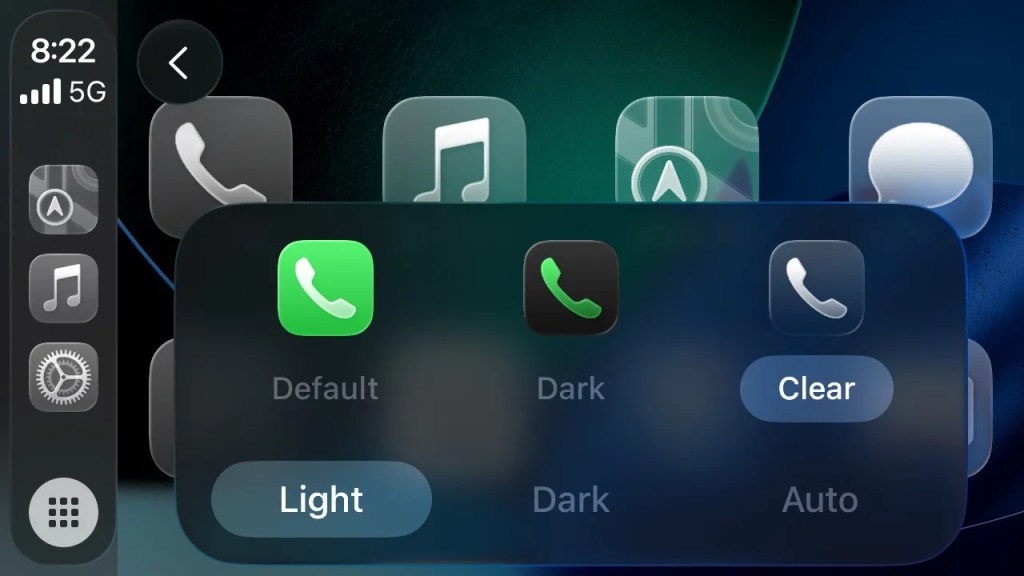
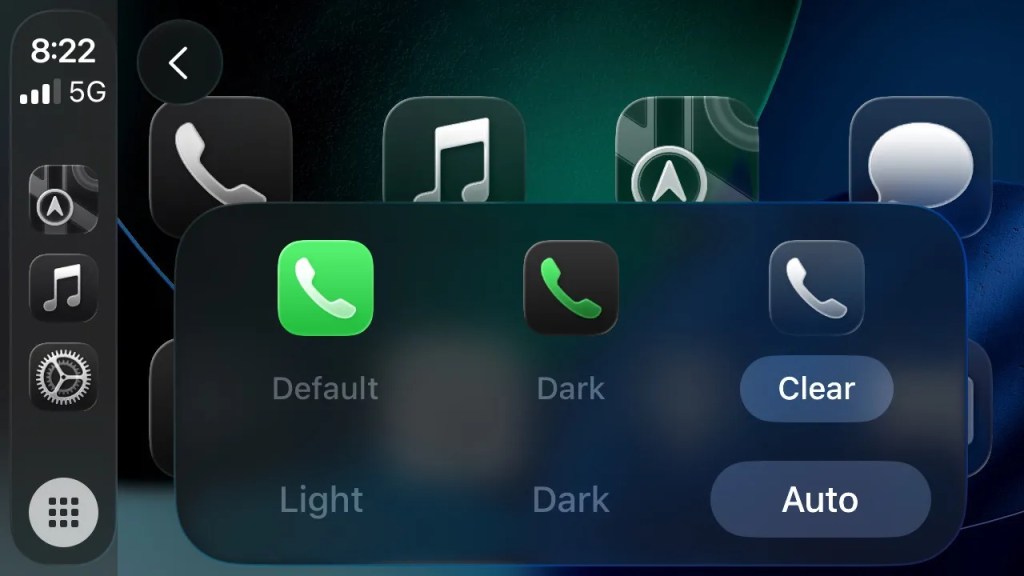
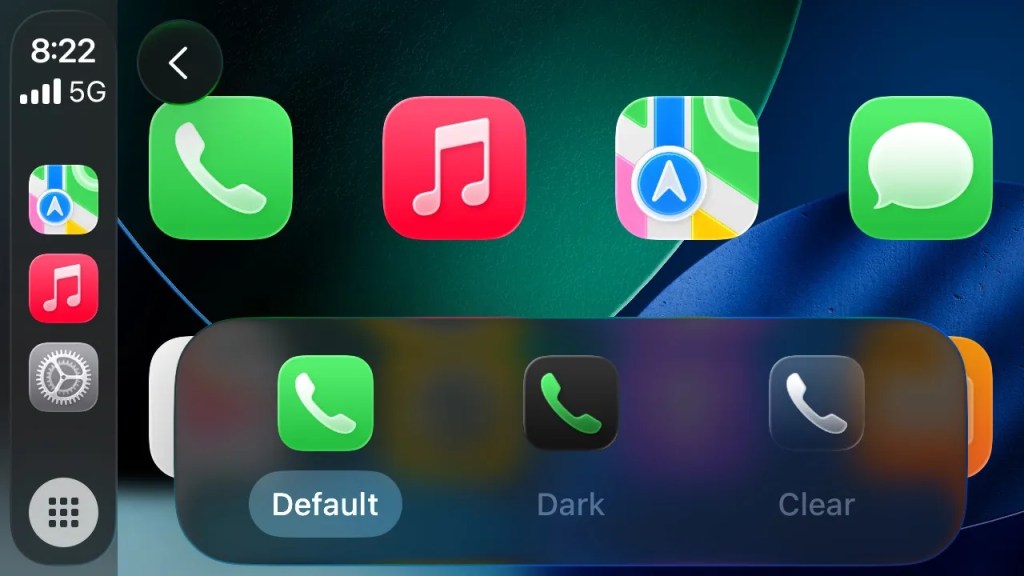
If you’re looking to refresh your CarPlay interface, there are multiple appear modes: Default, Dark, and Clear. You can find these options in the Settings app in CarPlay.
Are you a CarPlay user? If so, what are some of your favorite tips and tricks? Let us know down in the comments.
If you’re an electric vehicle owner, charge up your car at home with rooftop solar panels. To make sure you find a trusted, reliable solar installer near you that offers competitive pricing on solar, check out EnergySage, a free service that makes it easy for you to go solar. They have hundreds of pre-vetted solar installers competing for your business, ensuring you get high quality solutions and save 20-30% compared to going it alone. Plus, it’s free to use and you won’t get sales calls until you select an installer and share your phone number with them.
Your personalized solar quotes are easy to compare online and you’ll get access to unbiased Energy Advisers to help you every step of the way. Get started here.


FTC: We use income earning auto affiliate links. More.



Leave a comment